
Webinar registration software for free and paid events
Create registration pages for free or paid webinars, workshops, group coaching sessions, and events. Set the session details and seat limit, then add the external meeting or webinar link where the event will take place.
- Add multiple sessions to the same webinar, including free and paid sessions
- Connect Google Meet and give registered buyers the session link automatically
- Stripe and PayPal checkout
How to set up webinar registration
Set up the webinar with Thumbnail, Checkout, and Options. You can also add SEO details and customize the registration confirmation email.

Choose how your webinar appears
Choose a card layout, upload a cover image, and add the title, subtitle, and registration button label. The storefront preview updates as you edit the content, so you can see how the webinar card will look.
- Card style options and a setting to show the image
- Live storefront preview updates as you type
- Character counters for editable text fields

Build the webinar page
Choose between a separate page and a popup. Add a cover image, optional gallery images, a subtitle, and a description. You can also enable the "Show LIVE badge" so visitors can see when a session is currently running.
- Separate page or popup checkout format
- "Show LIVE badge" toggle — green pill during live sessions
- Cover image and optional gallery images
- Subtitle describing who the webinar is for and what it covers

Set up sessions and pricing
Add sessions to the webinar and set the price, date, start time, duration, and timezone for each one. Choose a session status such as Open, Registering, Sold Out, or Closed. Connect Google Meet to create the meeting room automatically, or add your own meeting link. You can also describe what is included in each session. Once the webinar is saved, buyers can register.
- Multiple session options with their own name, badge, and price
- Date, start time, duration, and timezone for each session
- Status: Open · Registering · Sold Out · Closed
- Google Meet auto-link — same room for all registrants
- "What's included" chips per option — Live Session, Q&A, Recording

Set up your webinar for Google search
Edit the Search Engine Listing and Social Preview for your webinar. Add the page title, permalink, and meta description, then preview how the page can appear in Google search and on social platforms.
- Live Google snippet preview as you type
- Title, permalink, and meta description with live character counters
- Social image with a preview for supported social platforms
- Auto-generated permalink from title (editable)

Customize the registration confirmation
The confirmation email can include the session date, time, and meeting link automatically. You can edit the subject and body and use dynamic variables such as {{customer_name}}, {{product_name}}, and {{your_username}}. Restore the default message whenever you need it.
- Editable Subject and Body
- Dynamic variables such as customer_name, product_name, and your_username
- Session date, time, and join link auto-included
- Subject character counter
No card required · 14-day free trial
How webinar registration appears on your storefront
Once your webinar is published, buyers can see it on your store and on its dedicated product page. The page includes the webinar details, upcoming sessions, and the registration flow. See a live example: creatorstore.co/@alex-creator.

Your webinar appears as a card in your storefront
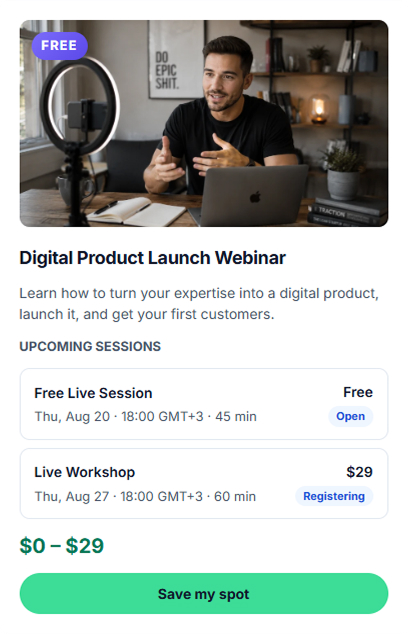
The webinar appears on your CreatorStore page with its cover image, title, subtitle, and Upcoming sessions. Visitors can see the session date, time, duration, price, and registration status before opening the webinar page.
- FREE badge on the card when a free session exists
- Upcoming sessions with date, time, duration, and price
- Per-session status: Open · Registering · Sold Out
- Save my spot opens the registration flow

A dedicated webinar page
Each webinar has its own URL and page where visitors can read the details and register. You can add a cover image, title, subtitle, upcoming sessions, description, and FAQ.
- Own URL with editable meta title and description
- Large hero cover image above the fold
- Upcoming sessions with their current registration status
- Rich description with sections and FAQ

Buyers choose a session and register
After clicking the registration button, buyers choose a session and see its date, time, duration, description, included items, and price. They provide their contact details and required consent before payment. Stripe or PayPal processes the payment, and the confirmation email includes the meeting link.
- Session picker with all upcoming sessions inline
- Per-session: date, time, duration, included items, and price
- Email, name, and consents captured before payment
- Stripe / PayPal at checkout — confirmation email fires automatically
Example store — click around to see how webinars actually work
Webinar registration software, answered.
Have a question? Reach out and we will help.
What is webinar registration software on CreatorStore?
Can I sell free and paid webinars in the same product?
Do I need Zoom or my own conferencing tool?
How are time zones handled for webinar sessions?
What happens when a webinar session is full or closed?
How do buyers get the meeting link?
Do I pay extra to sell webinars?
Can I earn money by selling webinars?
How should I price a webinar?
What topics can I cover in a webinar?
Manage webinar registration.
Sessions, payments, and access on one page.
Manage webinar sessions, registration, payments, and attendee access from your CreatorStore page.