
Custom service software — intake forms, payments, and order tracking
Create offers for audits, reviews, personalized roadmaps, AMAs, and other services that you deliver after a customer places an order. Collect the information you need through an intake form, manage orders from your dashboard, and deliver the finished work manually.
- Custom intake forms — collect the information you need before starting
- Manual delivery — send the finished work by email, DM, Loom, or a shared link
- Free or paid services — set the price for each offer
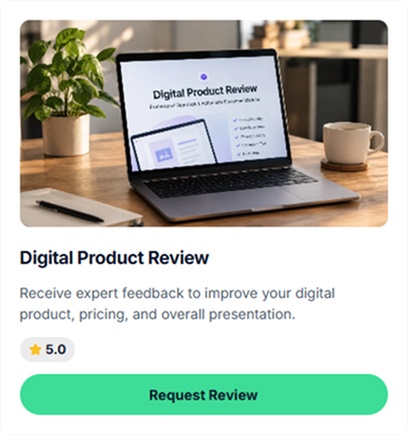
Create custom service offers for personalized work
Create offers for work that requires your expertise and is delivered after the order. Examples include audits, reviews, custom plans, written feedback, research, and Loom walkthroughs.
Strategy & business audit
Review a pitch deck, business plan, go-to-market plan, or other business material and deliver written feedback or a Loom walkthrough.
Resume / LinkedIn / pitch audit
Review a CV, LinkedIn profile, founder pitch, or other career material and send personalized feedback by email or video.
Ask Me Anything
Let customers submit a specific question and reply with a written answer or video. This works well for asynchronous advice and coaching.
Course / curriculum review
Review a course outline, curriculum, lesson plan, or educational material and return written feedback or an annotated document.
Personalized roadmap
Collect the customer's goals and background through an intake form, then create a personalized roadmap in PDF, Notion, or another format.
Funnel / sales copy review
Review landing pages, launch emails, ad copy, or other marketing materials and provide rewritten copy, written feedback, or a Loom walkthrough.
Portfolio / design critique
Review a portfolio, design project, or creative work and provide written feedback, recommendations, or an assessment.
Custom research or brief
Research a specific question or topic and deliver a custom research document based on the customer's brief.
“Can I sell a service if I have to create it after the customer orders?”
If you already provide consulting, reviews, audits, or other personalized work, you can turn those services into clear offers that customers can order online.

How to create a custom service in CreatorStore
Set up your service in a few steps: add the storefront card, create the product page and intake form, set your purchase options, and publish. You can also customize the SEO settings and confirmation email.
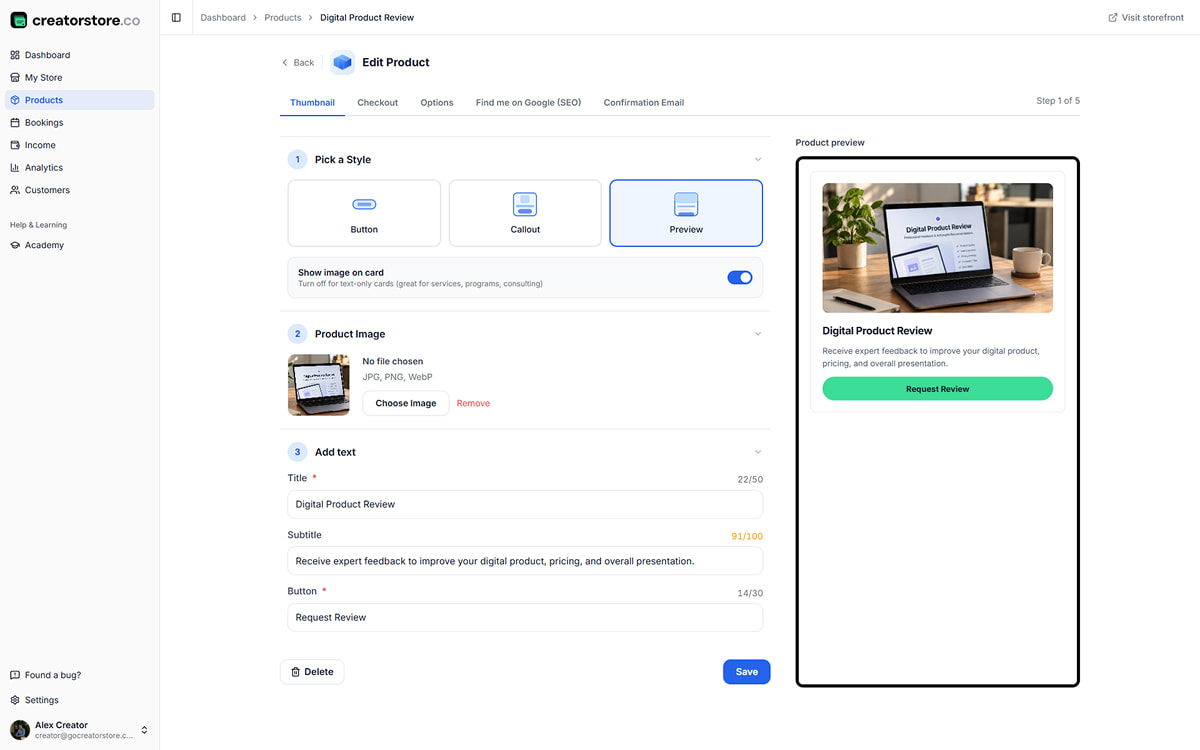
Choose how your custom service appears in your store
Choose from three card layouts: Preview, Callout, or Button. Add a cover image, title, subtitle, price, and button text. The storefront preview updates as you edit the card.
- Available card styles and image display options
- Live storefront preview
- Character counters for the title, subtitle and button
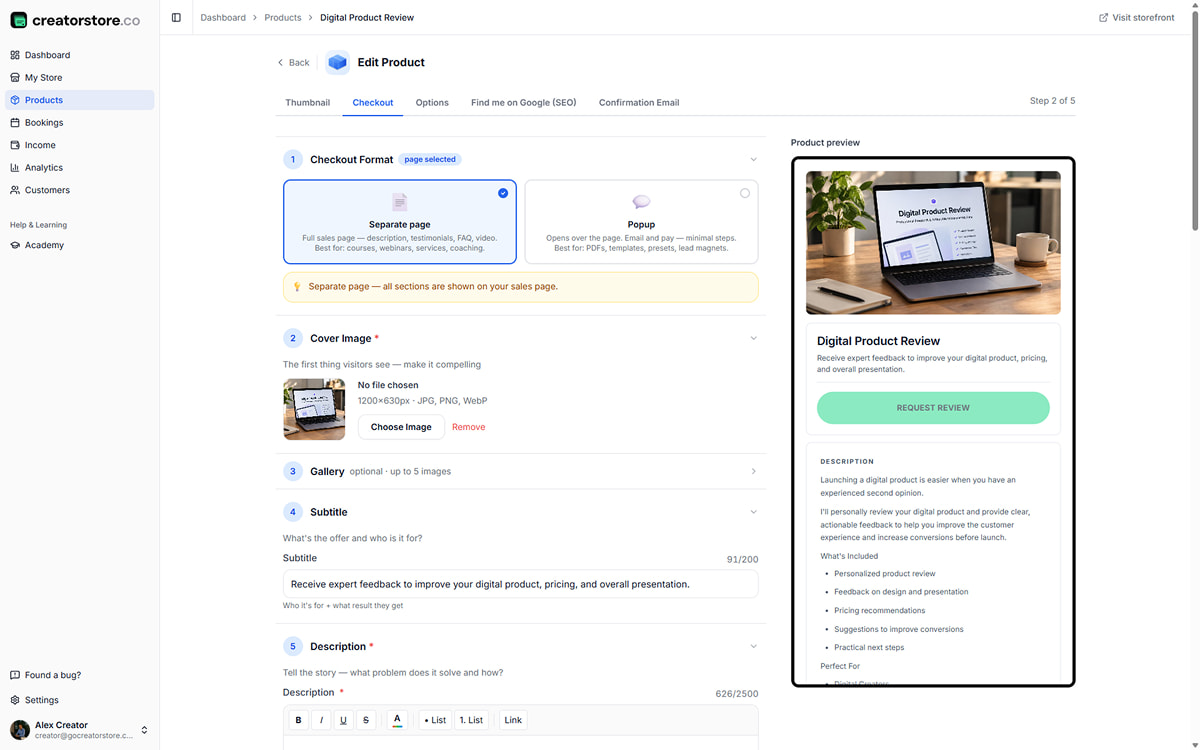
Build the sales page + set up the intake form
Build the service page with a cover, description, images, and the available content blocks you need. In Collect Info, add the intake fields required for that service so customers can provide relevant details when ordering.
- Service page and checkout flow
- Testimonials and supporting content blocks
- FAQ for common questions about the service
- Collect Info section — custom intake fields per service
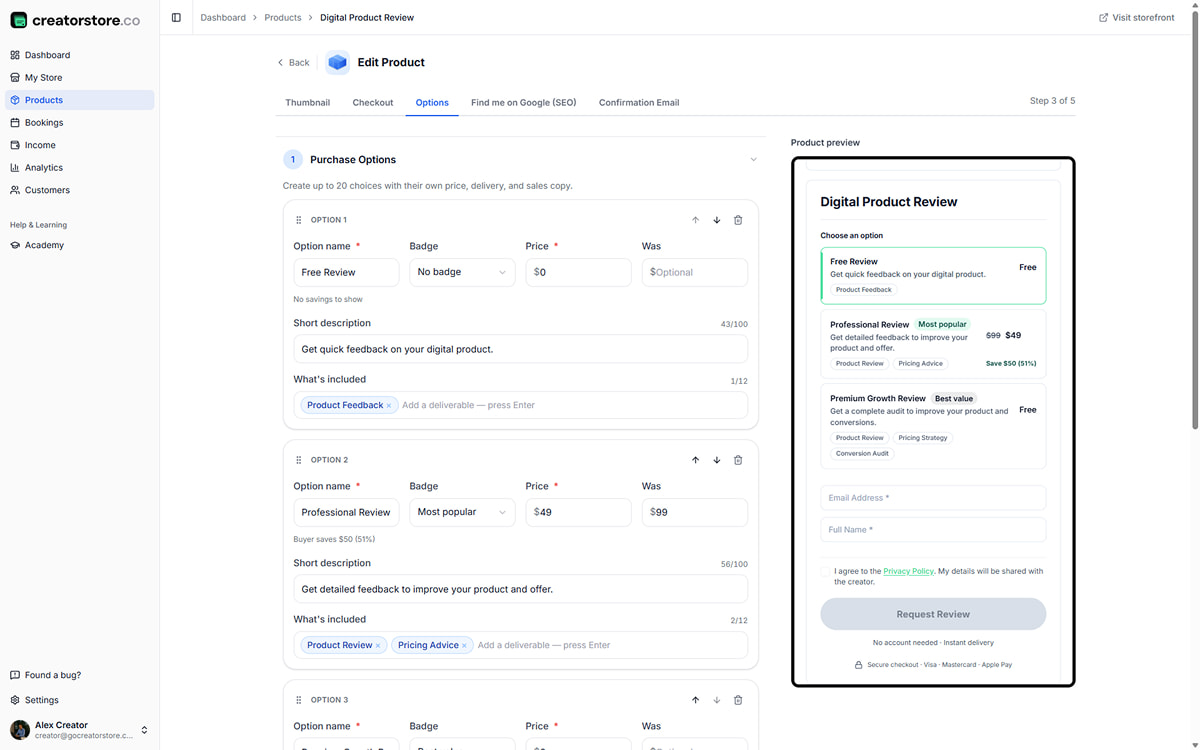
Set up purchase options with different scopes and prices
Add purchase options when one service is available with different scopes or prices. Give each option a clear name, price, description, and details about what is included. Publish the service when the setup is ready.
- Multiple purchase options per service
- Optional badges: "Most popular", "Best value"
- Per-option "What's included" scope tags
- Free option where supported by your settings
- Discount information when configured
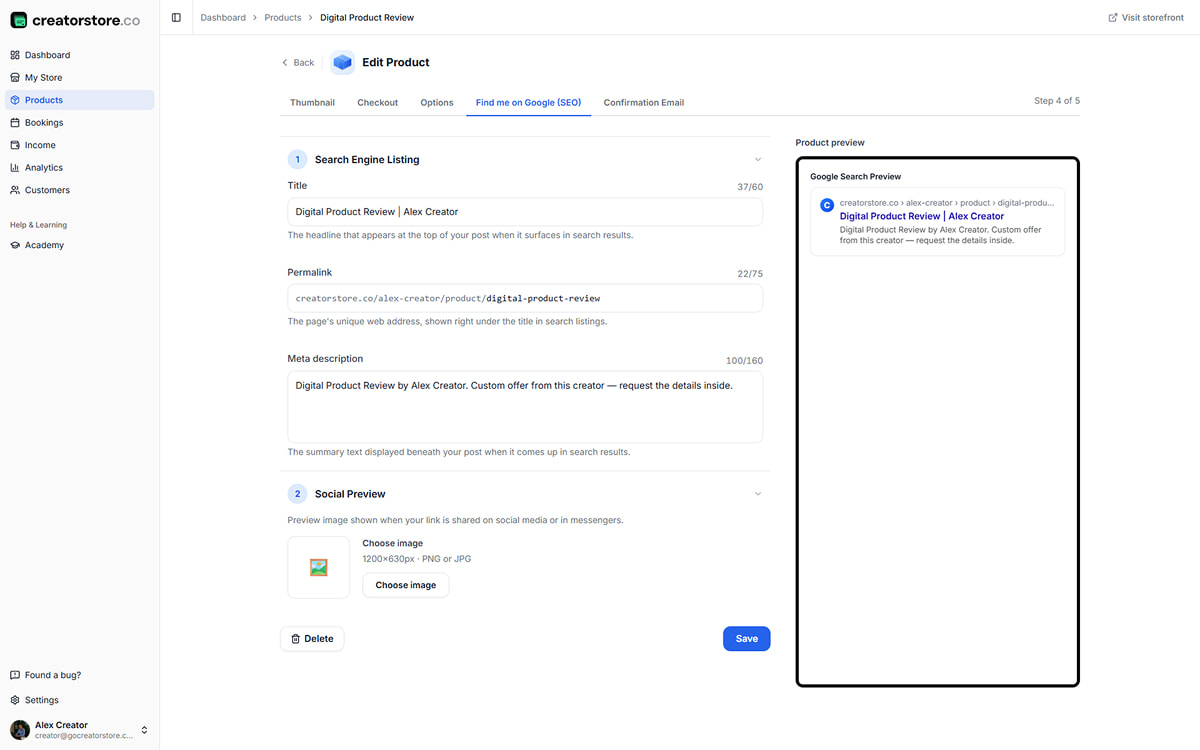
Optimize your service page for search
Add an SEO title, meta description and URL for your service page. You can also preview how the page may appear in search results and social sharing.
- Google search snippet preview
- Social image preview for platforms such as Facebook and LinkedIn
- Automatically generated product URL
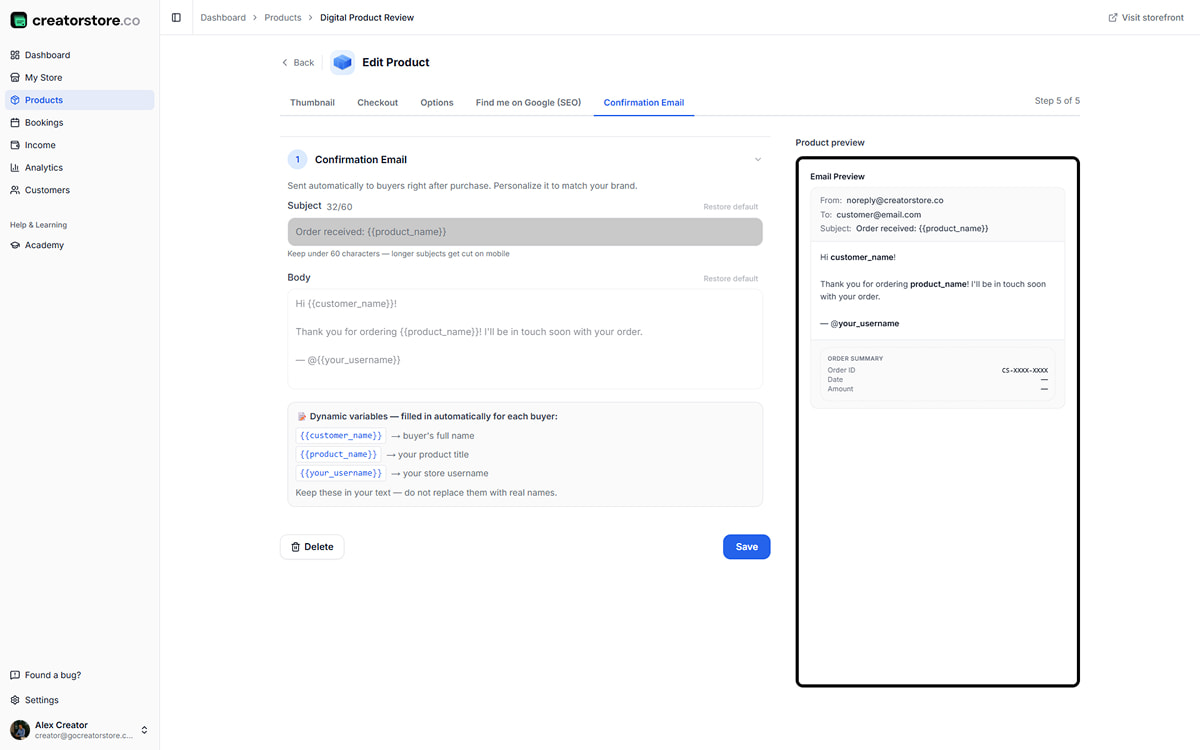
Personalize the order confirmation
Customize the confirmation email customers receive after ordering. Edit the subject and body and use available variables such as {{customer_name}}, {{product_name}} for personalization.
- Available dynamic variables for personalization
- Live email preview with Order Summary
- Order information in the confirmation email
No card required · 14-day free trial
How customers buy your custom services
Once published, your service appears as a card in your store and can have its own product page with the details customers need before ordering. Customers can review the service, choose an option, provide the requested information, and pay online. Real example: creatorstore.co/@alex-creator.
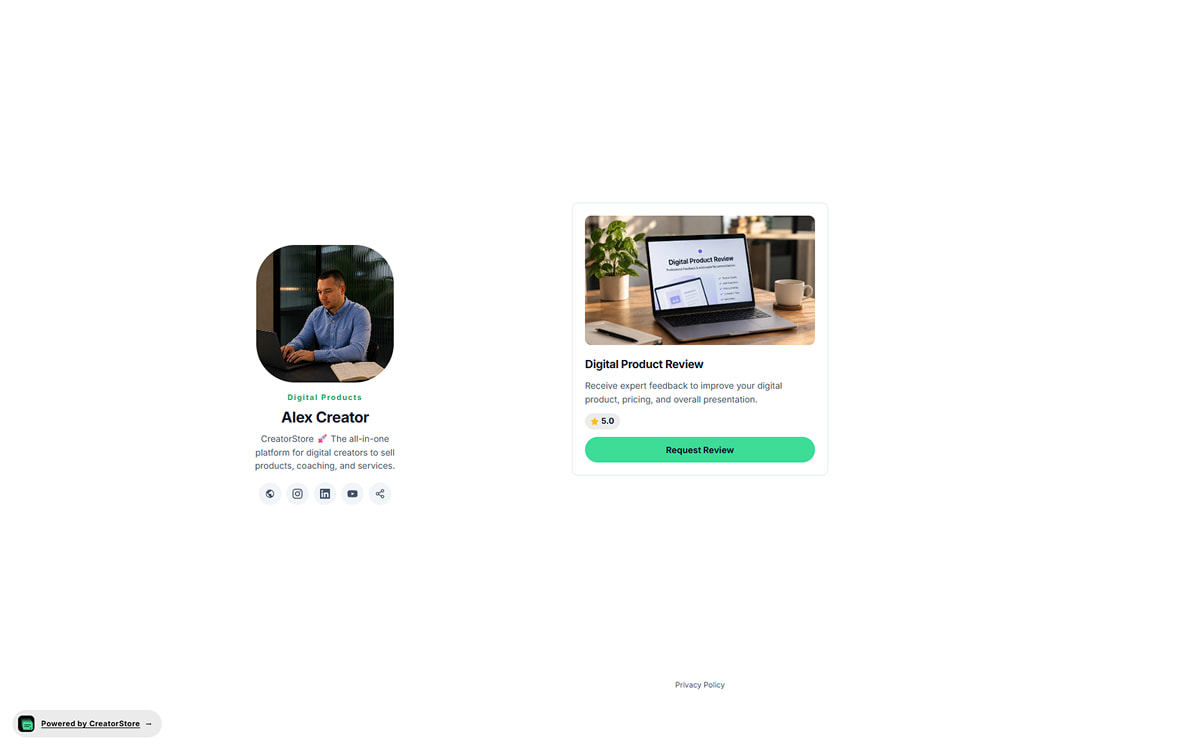
Your custom service as a store card
Your service appears in your CreatorStore with a cover image, title, subtitle, price, and order button. Customers can order from the card or open the full product page for more information.
- Available storefront card styles
- Display a subtitle with additional service information
- Customers can open the product page from your store
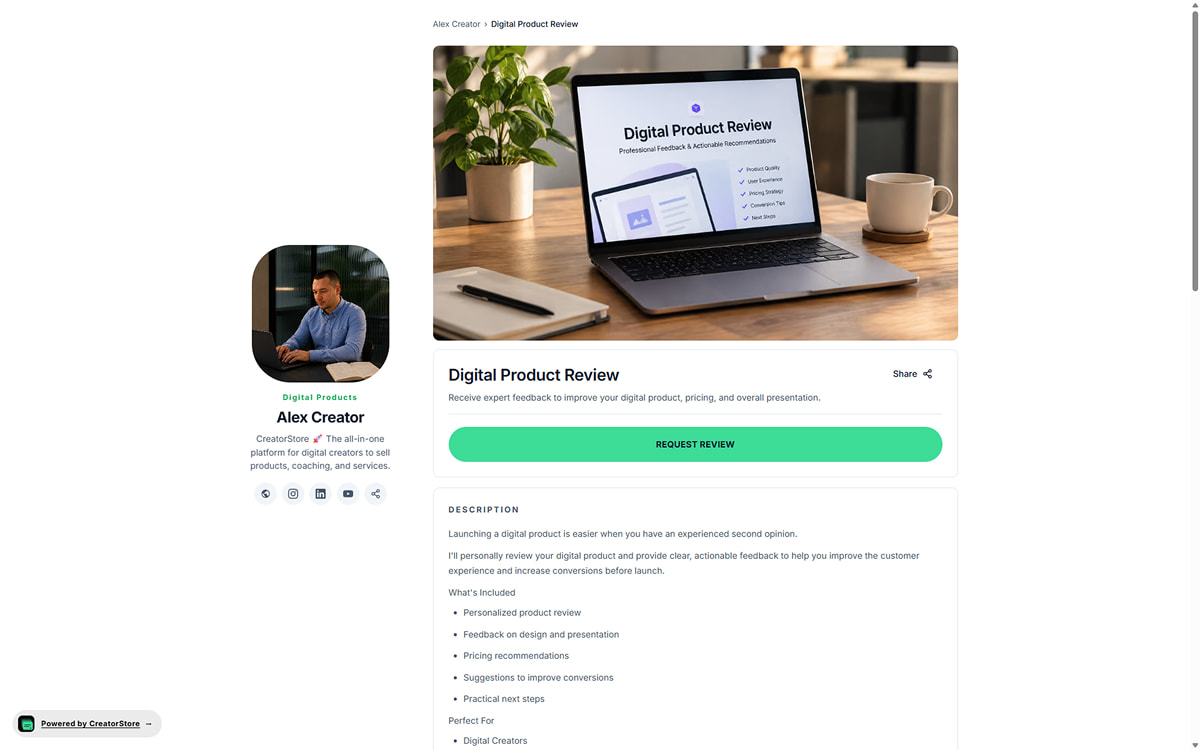
A dedicated product page for your custom service
Each service can have its own URL with a description, images, testimonials, FAQ, and other information customers need before ordering. You can also configure the page's SEO title and description.
- Dedicated URL for the service
- Custom SEO title and meta description
- Examples, testimonials, guarantee terms, and FAQ
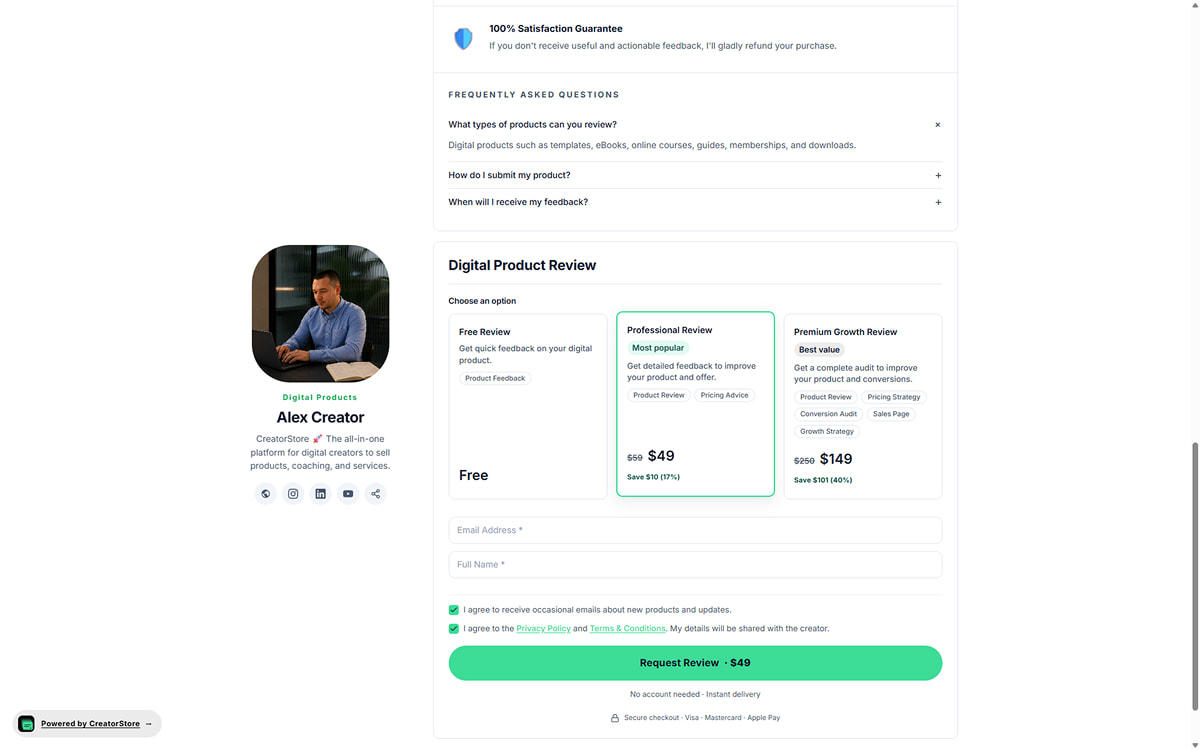
Choose an option, provide your details, and place the order
Customers can choose between the purchase options you create for the service. Each option can have its own name, price, description, and included services. Customers then provide the requested information through the intake form and complete payment.
- Multiple purchase options for one service
- Optional badges and included-service information
- Intake fields for collecting customer details
- Order, selected option, and intake responses available in your dashboard
Example store — see how custom service offers appear to customers
“What happens after a customer orders my service?”
Here is how a custom service order works, from collecting the customer's information to delivering the finished work.
Offer free or paid custom services
Set a price for your service or offer a free option when you want to collect information from potential customers before offering a paid service.
Free intake — lead capture
Set the price to $0 and ask customers to complete the intake form. You can collect their contact details and information about their request.
- ✓Set a $0 price
- ✓Collect information through the intake form
- ✓Use the collected details when following up with potential customers
Set the price for your service
Set your service price and accept payments through the payment providers available in your CreatorStore account. Customers pay when they place the order.
- ✓0% platform commission
- ✓Multi-currency support
- ✓Refund policy pulled from your Terms
Custom services — frequently asked questions
Answers to common questions about selling custom services, collecting customer information, payments, and delivery.
Why sell custom services instead of packaged products?
Custom services vs. digital products vs. coaching calls — where do custom services fit?
Who can sell custom services?
How long does it take to set up a custom service?
What fields can I add to the custom service intake form?
Can I set a promised turnaround time on custom services?
How do refunds work if a buyer isn't happy?
Does CreatorStore charge a commission on custom services?
How should I price a custom service?
Sell custom services from your own store
Create a custom service with an intake form, set your price, accept payments, and manage orders from your CreatorStore.