
Email capture and lead magnets — build your subscriber list before buyers.
Grow the list you'll launch to next. Use lead magnets, newsletter signups, and feedback forms to collect emails in your CreatorStore dashboard.
- Delivers a file, link, or promo code on signup
- Every lead in your dashboard — CSV export any time
- Free plan · You own the list · GDPR-friendly
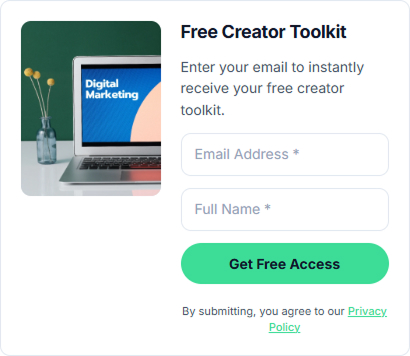
One block for different collection needs.
Use the same lightweight form component for the type of collection you need.
Lead magnet
A free file, link, or promo code in exchange for an email. Instant delivery — visitors get the value, you get the lead.
Newsletter signup
A minimalist "just your email" box for your homepage or footer. Perfect for weekly notes, launch waitlists, or "notify me" lists.
Feedback form
Let visitors send a message. They get a thank-you reply, you get a warm intro — with their email attached.
How to set up a lead magnet
Set up the Thumbnail, Delivery, Confirmation Email, then choose how the lead magnet is delivered. Pick a delivery method (file, link, or promo code), personalize the signup card, and you're live. Live preview on the right updates as you type.

Design the card visitors see
Choose a card style such as Button, Callout, or Preview. Upload a cover image, write the title ("Get the Creator Growth Guide"), a one-line subtitle, and a button label ("Get the Guide"). The Product preview on the right redraws with every keystroke, so you see exactly what visitors will see.
- Card styles + "Show image on card" toggle
- Character counters for title, subtitle, and button
- Live storefront preview updates as you type

Send a downloadable file to their inbox
Pick Upload Files as the delivery method and drop your PDF, ZIP, or image pack into the file field — multiple files supported. Every subscriber gets a unique download link the moment they confirm their email, and the direct URL never gets exposed.
- PDF, ZIP, images — multi-file
- Unique per-subscriber download link — no shared URL
- The uploaded file is stored securely on CreatorStore CDN

Redirect them to any URL you already host
Pick Redirect URL and paste a Destination URL — a Notion doc, a private Google Drive folder, a Loom video, a members-only page, a Substack post. The subscriber is sent there right after email confirmation, so you keep using the tools you already have to host the content.
- Any URL — Notion, Drive, Loom, private page, Substack
- Perfect when the "gift" is a resource, not a file
- Redirect fires after email confirmation, not before

Trade a discount for an email
Pick Promo Code, type your promo code, set an optional Valid Until date and a short Offer Description (for example, a first-order discount). Subscribers see the code in the confirmation email — great for warming a launch waitlist or a first-buyer bonus.
- Custom code text — your custom code
- Optional expiry date (blank = never expires)
- Short offer description shown at delivery

Personalize the confirmation — or use the default
The default email works out of the box. If you want it to sound like you, edit the Subject and Body — drop in dynamic variables like {{customer_name}}, {{product_name}}, {{your_username}}. Character counter warns when the subject gets clipped on mobile. Live email preview on the right shows the final email exactly as the subscriber receives it.
- Dynamic variables are auto-filled for each subscriber
- Live email preview with Order Summary block
- Subject character limit warning ("longer subjects get cut on mobile")
Free plan · No card required · New signups appear in your dashboard after submission
What subscribers see — and where their info lands
The flow covers: the signup card on your store, the on-page delivery after they confirm, and every subscriber landing in your My Customers dashboard.

The signup card, live on your storefront
Once you publish, the card renders on your creator store next to your profile — cover image on top, title and one-line pitch, Email Address and Full Name inputs (both configurable), and your green "Get the Guide" button. Everything sits inside your store layout — no popup, no external redirect, no "hosted by" branding.
- Renders alongside your bio, socials, and other products
- Email + optional Full Name fields (you choose which are required)
- "Powered by CreatorStore" footer — no ad, no third-party watermark

Green checkmark, download button, done
The form swaps to a Thank You page the second they submit — green check, product title, and their masked email ("a***@g***.com") so they know it landed on the right address. YOUR FILES section shows every attached file with a Download button. A confirmation email is sent to their inbox too, in case they want to grab the file later.
- Download links remain available according to the access settings for the lead magnet
- Backup confirmation email with the same download link
- "Resend access email" button so they never lose access

Every subscriber, sortable and exportable
Every new signup lands in My Customers — stats cards on top (Customers, Revenue, Sales, Avg Order Value), and a full table below with Last Purchase, Name, Email, Last Product, Product Type, Marketing status, Orders, Spent. The newest row highlights so you spot new leads instantly. Search, filter by date range, add a customer manually, or export CSV — one click.
- Customer table with configurable columns
- Date filter with preset or custom ranges
- Search by name or email · Export CSV for your email tool or CRM
The classic "leave your email" box — done right
Sometimes you don't need a lead magnet — you just need a spot for readers to say "keep me posted." One field, one button, zero friction. Show it inline on your store, or trigger it as a pop-up on delay, exit intent, or scroll depth.

Just an email field — nothing else
The signup card renders on your store next to your profile — a cover image, "Newsletter" title, one-line pitch ("Get news, tips, and new product announcements straight to your email"), one Email Address field, and a green Subscribe button. Minimal by design — every extra field lowers conversion, so there's just one.
- Single email field, no forced extras
- Optional consent line ("On submitting, you agree to our Privacy Policy")
- Custom cover image and one-line pitch

Pick style, cover image, and text
Same admin flow as any product on CreatorStore — pick one of card styles (Button, Callout, Preview), upload a cover image, write the title ("Newsletter"), a one-line subtitle, and the button label ("Subscribe"). Live Product preview on the right updates in real time as you type.
- Card styles + "Show image on card" toggle
- Character counters for title, subtitle, button
- Collect Info section — Email is default; add Full Name or custom fields

Show it inline — or trigger it as a pop-up
The Display format toggle picks how the form appears on your store page. On page renders it inline in the grid alongside your other products. Pop-up shows an auto-triggering overlay over your page — closable, with frequency limits so returning visitors don't see it every time.
- On page — inline in your store grid, always visible
- Pop-up — auto-triggering overlay, closable
- Toggle any time without losing subscribers already collected

Fire the pop-up when the reader is warm
Pick Pop-up and the trigger settings unfold. Show the form after a Time delay (e.g. a short delay), on Exit intent (when the visitor moves to leave — desktop only), or after Scroll percentage (once they've read a chunk of the page). Combine multiple triggers — the first one that fires wins. Then pick Display frequency — Every time, or Once per session — so returning visitors don't hit the same pop-up over and over.
- Time delay · Exit intent · Scroll percentage — mix and match
- First-trigger-wins — no overlapping pop-ups
- Display frequency: Every time · Once per session
Let visitors talk to you — without opening their mail app
A "message the creator" box that captures the email along with the message. Perfect for questions, feature requests, testimonials, or "loved this — do you have more?" replies. The admin setup lets you design the card, then pick where it shows on your page.

A friendly "do you have any questions?" box
The card sits on your storefront next to your profile — cover image, title ("Do you have any questions?"), one-line pitch ("Write what you need help with or what's unclear — I'll reply personally"), Email + Full Name + a Custom Field for the message, then the green Send button. Every message arrives with the sender's email attached, so you can reply direct — no back-and-forth to get their contact.
- Email + Full Name + free-text message field
- Add extra Custom Fields (subject, topic, priority)
- Optional consent line under the Send button

Set the tone — friendly, not corporate
Same admin flow as the other forms — pick a card style (Button, Callout, Preview), upload a cover image, write the title ("Do you have any questions?"), a warm subtitle ("Write what you need help with — I'll reply personally"), and the button ("Send"). Live Product preview on the right shows exactly what visitors will see, no guessing.
- Warm title and subtitle set the tone (not "Contact us")
- Character counters keep copy within card bounds
- Collect Info block — add custom fields per feedback form

Set the thank-you the sender sees after Send
The Feedback delivery step has an On submit section that isn't there for other form types — it's what the sender sees the second they click Send. Write a short thank-you message so they know the message landed. Placement toggles (On page / Pop-up) work the same way as on the newsletter form.
- Custom on-submit thank-you message you write yourself
- Optional redirect URL — point them to a next-step page
- Placement (On page / Pop-up) — same options as the newsletter
«Which form should I actually use?»
Different form types, one practical question: which one to start with? Short chat on when to pick a lead magnet, when a newsletter box, when a feedback form.

Your list. Your leads. Your rules.
Some platforms charge per subscriber. Others lock your list behind their tool and their API limits. CreatorStore is different — the list is yours from the first signup, export it any time, use it anywhere.
You own every email
Every subscriber, every submission, every message — in your admin panel. One-click CSV export, no vendor lock-in, no fees per subscriber.
GDPR-friendly by design
Optional consent checkbox, timestamped opt-ins, delete-on-request — everything you need to run a compliant list from day one.
Email capture and lead magnets, answered.
Everything creators ask before adding a signup form.
Is this really free forever?
What can I deliver as a lead magnet?
Do I need a third-party email tool?
Can subscribers unsubscribe?
Can I add a consent checkbox?
Does the feedback form send me an email?
Can I place forms in multiple spots on the same page?
Do I have to enter a credit card?
Your future launch starts
with today's first email.
Add a lead magnet, newsletter signup, or feedback form to your store — and start growing a list you own, no third-party email tool required.
✓ Free plan · ✓ Unlimited signups · ✓ Export CSV anytime · ✓ You own the list